> ## Documentation Index
> Fetch the complete documentation index at: https://docs.duix.com/llms.txt
> Use this file to discover all available pages before exploring further.
# Get conversation ID
> Learn how to retrieve your conversation ID from the Interactive AI Avatar dashboard for API integration.
## Overview
Each **Conversation ID** uniquely identifies a specific Interactive AI avatar session.\
You’ll use this ID to connect and interact programmatically with your avatar through the **Duix API**.
***
## How to Retrieve Your Conversation ID
Follow the steps below to obtain your Conversation ID from the Duix dashboard.
### Step 1: Locate Your Avatar Card
Open the **Interactive AI Avatar Dashboard** and find the avatar card associated with the conversation you want to access.
### Step 2: Copy the Conversation ID
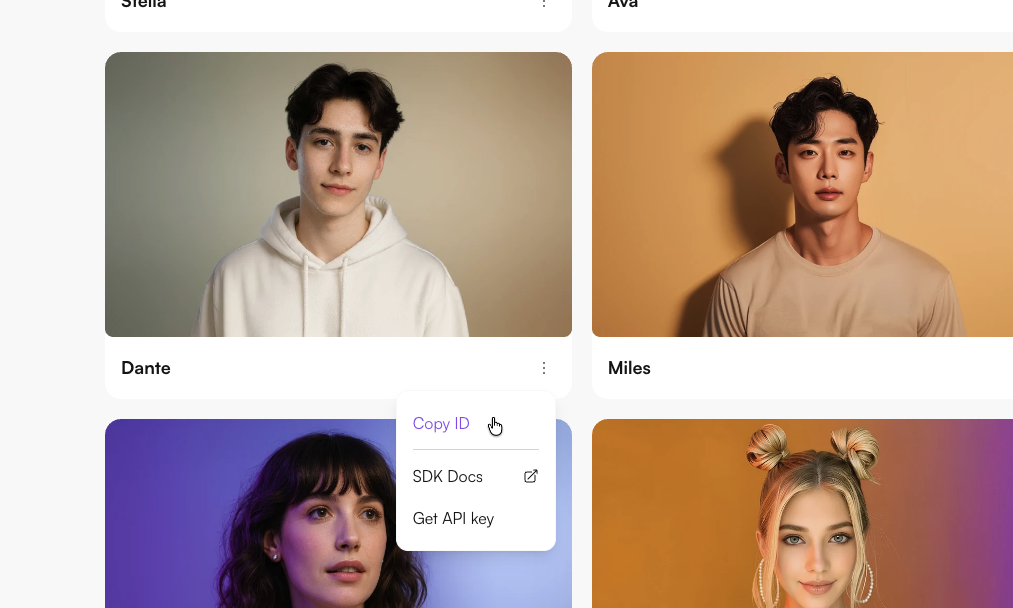 1. Locate the **Copy ID** button in the bottom-right corner of the avatar card.
2. Click **Copy ID** to copy the conversation ID to your clipboard.
The **Copy ID** button instantly copies the Conversation ID to your clipboard, allowing you to paste it directly into your code or API requests.
***
## Next Steps
With your **Conversation ID** ready, you can start integrating it into your API workflows:
* [Get Your API Keys](/documentation/get-your-api-keys)
1. Locate the **Copy ID** button in the bottom-right corner of the avatar card.
2. Click **Copy ID** to copy the conversation ID to your clipboard.
The **Copy ID** button instantly copies the Conversation ID to your clipboard, allowing you to paste it directly into your code or API requests.
***
## Next Steps
With your **Conversation ID** ready, you can start integrating it into your API workflows:
* [Get Your API Keys](/documentation/get-your-api-keys)